Getting started
This page covers what you need to know before opening your first project: how to log in, how the screen is organised and what help you have at hand.
Open the app
- Open the application from the Log in button on the website.
- Create your account with an email and password. You will receive a code by email: enter it to confirm the account.
- If you forget your password, use «Forgot your password?»: you will also receive a code by email.
More details in Your account.
The screen
- Sidebar (left). Language, dark mode, guided tutorial, project name and client, Simulate system button, project history and «Report branding».
- Tabs (centre). Steps 1 to 7, from left to right.
- Assistant. The bubble in the bottom right corner answers questions about the tool and your results.
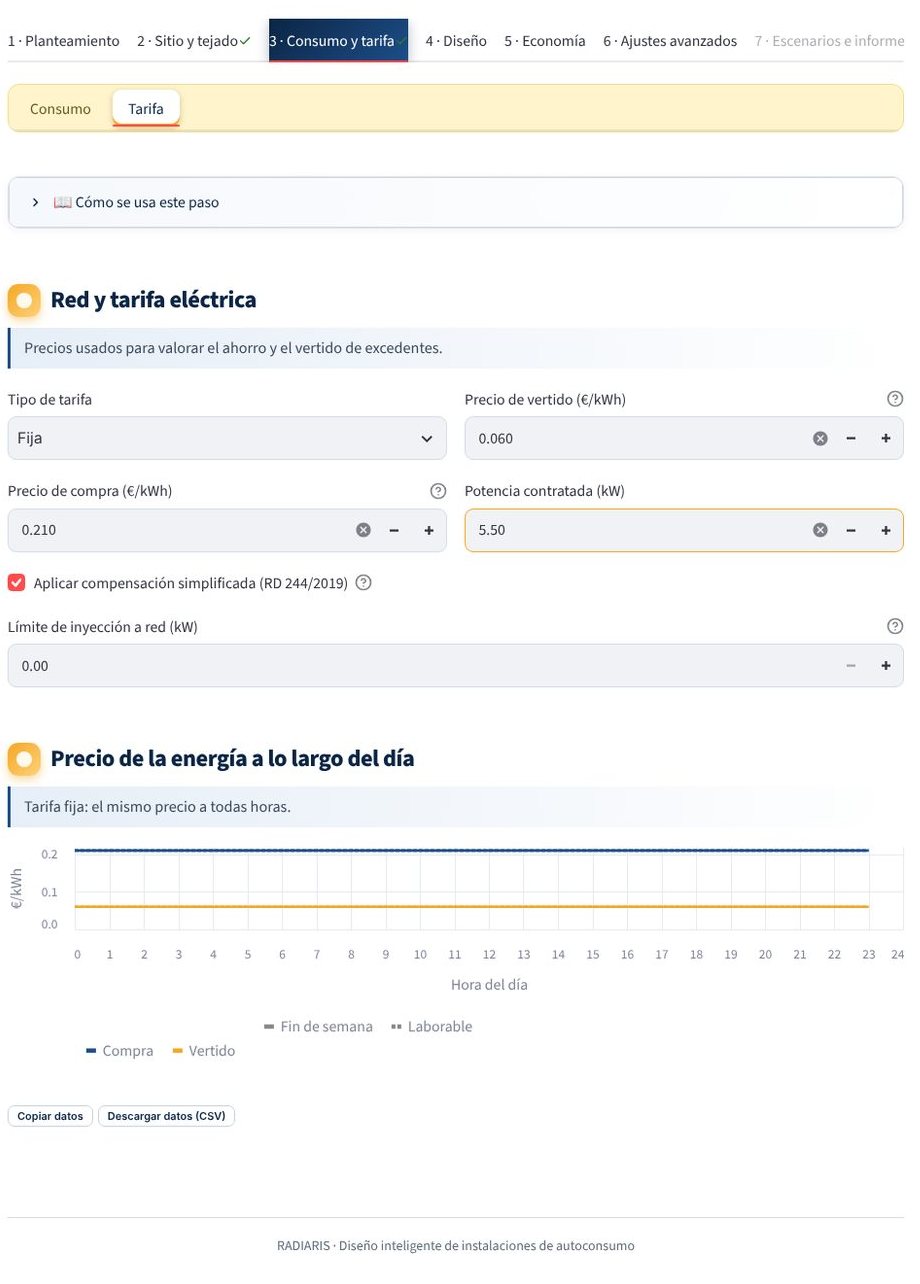 Sidebar, step tabs and an open step (Consumption and tariff → Tariff).
Marks on the tabs
A ⚠ on a tab means some mandatory data are missing; a ✓ means the step is complete. The Simulate system button tells you what is missing if you press it too early. Step 7 is enabled when there is a result.
Built-in help
- «?» next to each field: explains what it does and which value usually makes sense.
- «How to use this step»: a drop-down at the top of each tab with the instructions for the step.
- Guided tutorial: a button in the sidebar that walks you through the application. See Assistant and tutorial.
- Language: the application and the PDFs are available in ten languages (Spanish, English, Portuguese, German, French, Italian, Polish, Dutch, Turkish and Czech).
Copying and downloading data
Under each chart or table there is a bar to copy the data, download them as CSV or save the image as PNG.
Next step
Continue with the Workflow in 7 steps.
Is something missing or wrong? Write to us at hola@radiaris.com. Last reviewed: 26 October 2026.